
Enable Apple Intelligence on Unsupported Devices
Apple Intelligence is one of the biggest features in iOS 26, but Apple only enables it on the newest devices—such as the iPhone 15 Pro, 15 Pro Max, and all iPhone 16 models. All older devices running iOS 26 are blocked from using it.
With misaka26 and the new MobileGestalt exploit, you can unlock the full Apple Intelligence interface on any iPhone that runs iOS 26–26.2 Beta 1, even if Apple does not officially support your device.
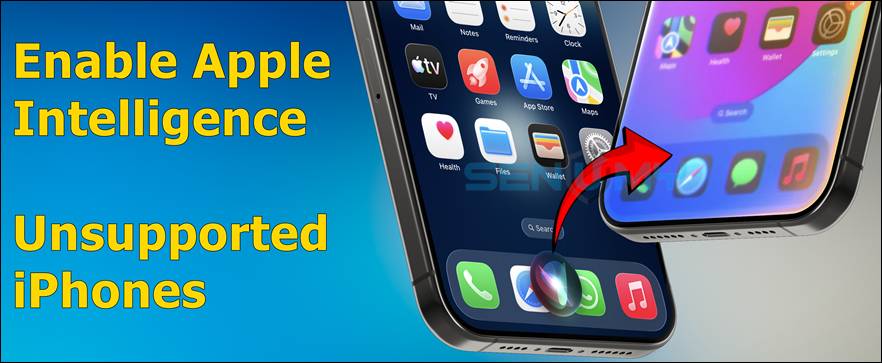
misaka26 does not fake or simulate anything. It simply turns on the same internal system flags that Apple uses on supported iPhones. This reveals the entire Apple Intelligence menu in Settings and allows the system to download the UI components normally after temporarily spoofing your Product Type.
Misaka26 is also one of the best iOS 26.1 jailbreak alternatives, acting like a rare 0-day style tweak tool. It lets you customize system features on the latest signed firmware — no full jailbreak needed.
Important note:
Only the interface (UI) is enabled.
The actual Apple Intelligence features—writing tools, system intelligence, ChatGPT integration—still do not function because Apple blocks access on the server side. This method only unlocks the environment, not the cloud features.
Even with limitations, it’s useful for testing the UI, previewing new features, and experimenting with early integrations.
Unsupported Devices Running iOS 26
These devices run iOS 26 but do not officially support Apple Intelligence:
- iPhone XR
- iPhone XS / XS Max
- iPhone 11 Series
- iPhone SE 2 & 3
- iPhone 12 Series
- iPhone 13 Series
- iPhone 14 Series
- iPhone 15 / 15 Plus
Although unsupported, they all contain the Apple Intelligence UI framework. misaka26 simply re-enables it using MobileGestalt changes.
How to Enable Apple Intelligence Using misaka26
Step 1 — Open misaka26
- Install the latest misaka26 on Windows or macOS.
- Launch it and import your MobileGestalt plist from your iPhone.
- Connect your iPhone via USB and turn off Find My.
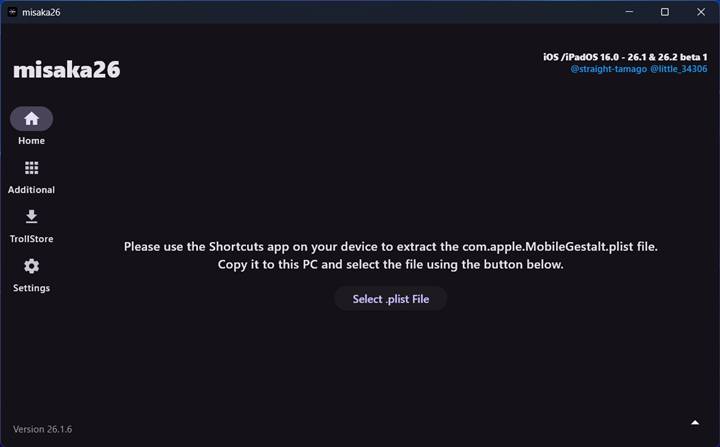
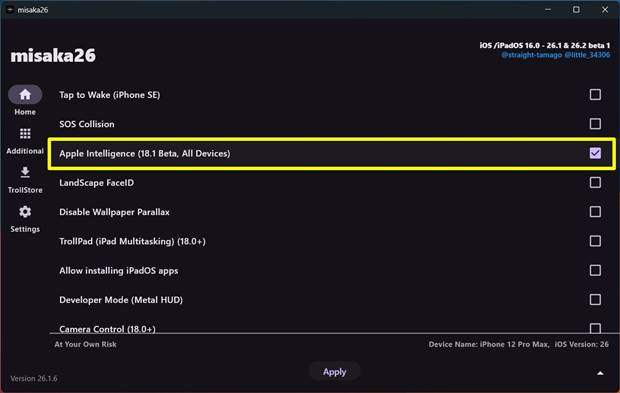
Step 2 — Select “Apple Intelligence Mode”
- Make sure your device language and Siri language match.
- In misaka26, choose Apple Intelligence mode to load the required feature flags.
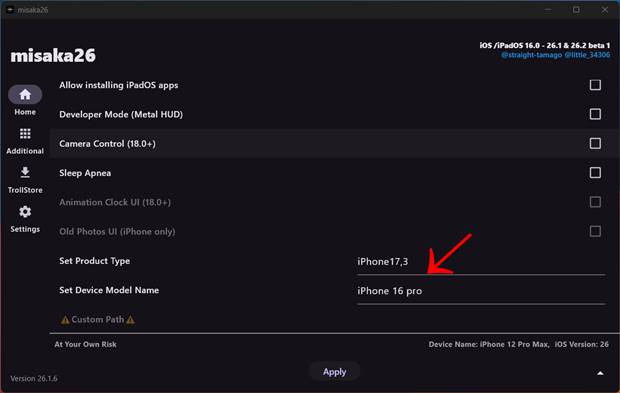
Step 3 — Change Product Type (Required)
To download Apple Intelligence, temporarily spoof your iPhone to: iPhone17,3
Write down your original Product Type—you will restore it later to fix Face ID.
Step 4 — Download Apple Intelligence
- Open the Apple Intelligence menu on your device.
- Wait until the download completes (around 20 minutes).
- A notification will confirm installation.
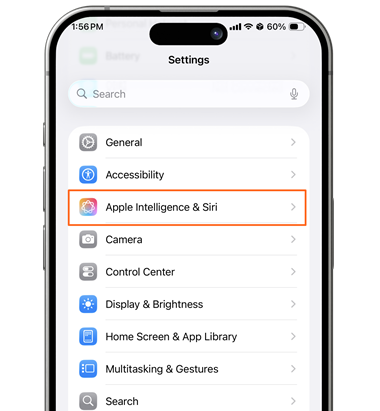
Step 5 — Use Apple Intelligence UI
You can now open and explore the Apple Intelligence interface.
UI works — but features do not (yet).
Step 6 — Restore Original Product Type (Fix Face ID)
- Open misaka26 again.
- Restore your original Product Type.
- Apply changes.
Face ID will work again and the Apple Intelligence UI stays enabled.
Step 7 — Do Not Reopen Apple Intelligence Settings
Opening the Settings page again may hide the feature.
If that happens:
- Reopen misaka26
- Toggle Apple Intelligence ON again
(No need to re-download.)
Conclusion
misaka26 makes it possible to unlock the Apple Intelligence interface on any iPhone running iOS 26–26.2 Beta 1, even if Apple restricts the feature to newer models. While the intelligence features themselves still don’t function, this method is stable, safe, and ideal for users who want to preview the UI and explore upcoming features.