
Disable Call Recording Alert on iOS 26
iOS Disable Call Recording by YangJiiii — Hide Call Recording Notification on iOS
iOS Disable Call Recording by YangJiiii is a no-jailbreak tool that silently disables the call recording alert sound on iOS 18 to iOS 26.1 using a safe, automated method on Windows and macOS.
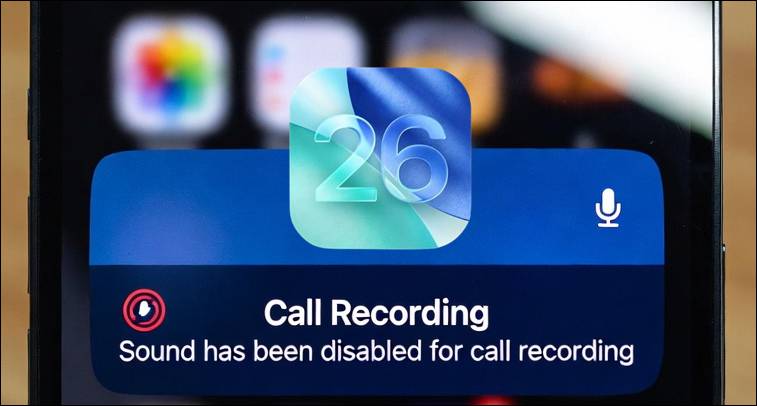
Apple added mandatory voice alerts when call recording starts and stops to meet privacy laws. With iOS 26, these alerts became stricter, and Apple no longer allows users to mute or change them using normal system settings. This can be frustrating for researchers, developers, and advanced users who need to test or analyze call recording behavior.
iOS Disable Call Recording by YangJiiii solves this problem without requiring a jailbreak. The tool automatically replaces the system call recording alert sounds with silent audio files, so call recording continues to work—but without the loud voice notification.
How This Tool Works
The call recording alert sounds are stored deep inside protected iOS system folders. Normally, these files cannot be modified without jailbreaking.
This tool uses a Books app file overwrite technique, which allows it to safely replace the following system files with silent audio:
StartDisclosureWithTone.m4aStopDisclosure.caf
After replacement, call recording still functions normally, but no audible alert is played when recording starts or stops.
Supported iOS Versions and Devices
- iOS versions: iOS 18.0 to iOS 26.1
- Devices: Modern iPhone and iPad models
- Connection: Standard USB cable (no wireless setup)
Key Features
- ✅ No jailbreak required
- ✅ Fully automated process
- ✅ Works on Windows and macOS
- ✅ Uses pre-included silent audio files
- ✅ Automatically installs required Python dependencies
- ✅ Does not permanently modify system partitions
- ✅ Safer than manual methods
Supported Platforms & Requirements
- Operating Systems: Windows, macOS (Linux may work but is not officially supported)
- Python: Python 3 required
- Windows users: iTunes required for Apple USB drivers (non-Microsoft Store version recommended)
- Hardware: USB cable and unlocked iPhone/iPad
- You must tap “Trust This Computer” on your device when prompted
Legal & Safety Notice
This tool modifies internal iOS system files related to call recording behavior. While no jailbreak is required, system-level changes always carry some risk, including data loss or instability.
👉 Always create a full backup before using this tool.
Call recording laws vary by country. Disabling the call recording alert may be illegal in some regions. This project is intended for educational and research purposes only. You are responsible for following local laws.
Installation & Setup Guide
Step 1: Download the Tool
First, download the tool files to your computer.
- Open Terminal on macOS or Command Prompt / PowerShell on Windows
- Run this command:
git clone https://github.com/YangJiiii/Disable-Call-Recording-BookRestore-
A new folder will be created. Move into it:
cd Disable-Call-Recording-BookRestore-
Step 2: Install Python 3
The tool requires Python 3 to run.
- Download and install Python 3 from the official website
- On Windows, make sure to check “Add Python to PATH” during installation
After installing, confirm Python is working:
- Windows
python --version
- macOS
python3 --version
Step 3: Install iTunes (Windows Only)
If you’re using Windows:
- Install iTunes to get Apple USB drivers
- Avoid the Microsoft Store version, as it may cause connection issues
Step 4: Connect Your iPhone or iPad
- Connect your device using a USB cable
- Unlock your device and tap “Trust This Computer”
- Make sure your device appears in:
- Finder (macOS)
- iTunes (Windows)
How to Run the Tool on Windows
Step 1: Open Command Prompt in the Tool Folder
- Open the folder you downloaded
- Click the address bar, type cmd, and press Enter
- Or manually navigate using:
cd path\to\Disable-Call-Recording-BookRestore-
Step 2: Start the Tool
Run the script:
python main.py
💡 Running Command Prompt as Administrator is recommended.
The tool will automatically:
- Install missing dependencies
- Detect your iPhone or iPad
- Guide you step by step
Step 3: Follow On-Screen Instructions
- Keep your device unlocked
- If asked, open the Books app and open any book or free sample
- This helps the tool complete the setup
Once finished, the call recording alert sounds will be replaced with silent audio.
How to Run the Tool on macOS
Step 1: Open Terminal and Go to the Tool Folder
In Terminal, navigate to the folder:
cd path/to/Disable-Call-Recording-BookRestore-
(If you just cloned the tool, you may already be there.)
Step 2: Run the Script
Start the tool using:
python3 main.py
If Python is not detected, confirm it’s installed:
python3 --version
Step 3: Complete the Process
- Keep your iPhone or iPad unlocked
- If prompted, open the Books app and open any book or free sample
- Wait for the script to finish
After completion, call recording will work normally without any audible notification.