
How to Save the MobileGestalt Plist on iOS 26
Saving your MobileGestalt plist is now a required step for anyone who wants to use misaka26 or experiment with system tweaks on iOS 26. Apple patched the old automatic extraction methods, but thanks to the Shortcuts app and the Save MobileGestalt shortcut by LucaVmu, you can still export the plist manually.
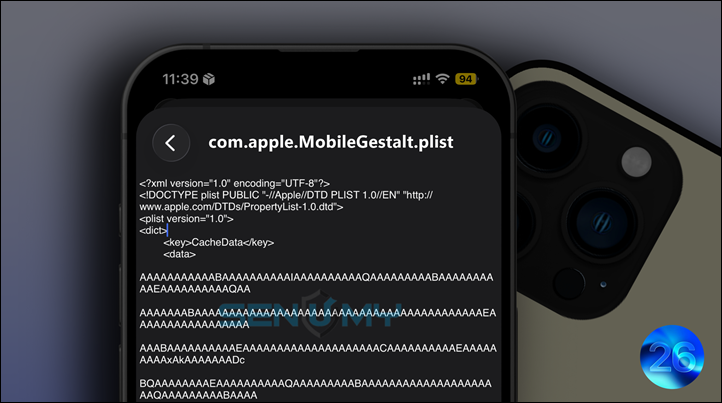
With just a few steps, you can generate your own com.apple.MobileGestalt.plist on any iPhone running iOS 18–26 and import it into misaka26 for tweak support.
What Is the MobileGestalt File?
MobileGestalt is a core iOS configuration file that stores your device’s internal capabilities—things like:
- Dynamic Island support
- Stage Manager
- Always-On Display
- Apple Intelligence
- Region-restricted settings
- Hardware-specific features
Misaka26 reads these values to enable or modify features, which makes extracting this plist essential for modern iOS tweaking.
You can even enable the Apple Intelligence interface on any iPhone running iOS 26 — no jailbreak required.
Why Saving This Plist Matters
Right now, MobileGestalt extraction is mainly used for:
- misaka26 tweaks
- Unlocking hidden system features
- Testing internal Apple flags
- Discovering new hardware-gated features
iOS blocks apps from accessing MobileGestalt directly, but the Shortcuts app still has system-level access—so this method continues to work.
Why This Method Still Works
Apple patched older tools, but Shortcuts can still open and export MobileGestalt manually. Automation is blocked, but the manual workflow remains fully functional as long as Shortcuts retains system privileges.
Shortcut link:
- Save MobileGestalt (no login required)
- RoutineHub • Save MobileGestalt (login required)
Latest version: v1.2 (Sep 25, 2025)
How to Save the MobileGestalt Plist (Step-by-Step)
All you need is your iPhone, the shortcut above, and a way to transfer the file to your computer. Misaka26 uses this MobileGestalt exploit to unlock new tweak options on iOS 26.0–26.2 Beta 1.
Step 1 — Install the Shortcut
- Open the link above on your iPhone.
- Tap “Add Shortcut.”
- If iOS blocks it, enable:
Settings → Apps → Shortcuts → Advanced → Allow Running Scripts
The shortcut will now appear in your library.
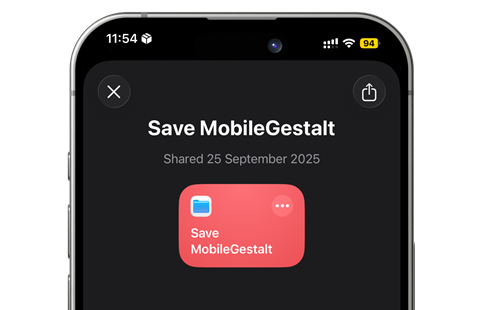
Step 2 — Run the Shortcut
- Open Shortcuts and run Save MobileGestalt.
- Tap Click Here.
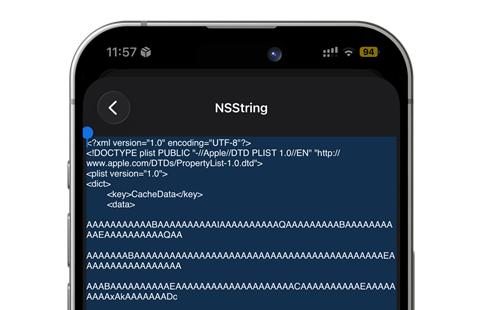
- Tap the File icon → view the NSDictionary output.
- Tap the Share button → Copy.
Paste the text into a new file and save it as:
com.apple.MobileGestalt.plist
Step 3 — Move the File to Your PC or Mac
You can transfer it via:
- AirDrop
- iCloud Drive
- Files app
- USB
Once on your computer, import it into misaka26. The tool will read your device’s keys and build the correct tweak profile.
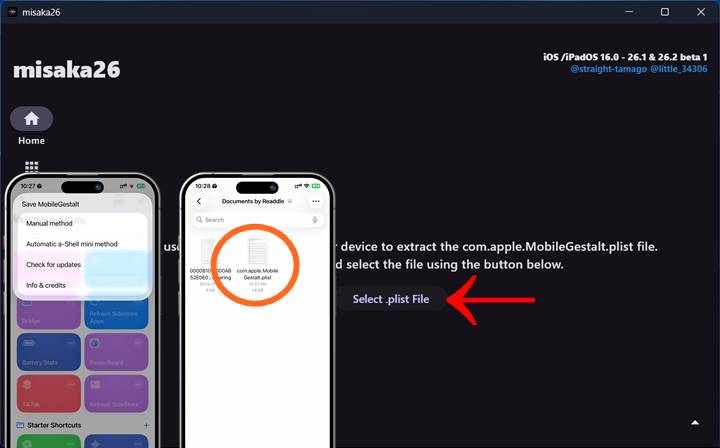
How to Restore Your Original MobileGestalt
If something breaks or a tweak behaves oddly, misaka26 includes a reset feature:
- Open misaka26
- Tap the small button in the bottom-right
- Select Regenerate MobileGestalt (Reset)
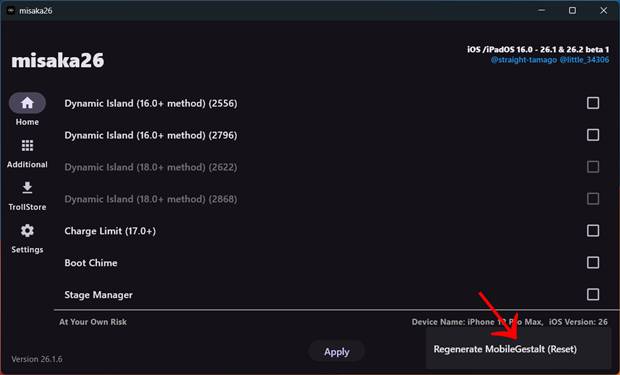
This restores your stock values.
If you saved a backup plist earlier, you can import it at any time.
Tips for a Clean Extraction
- Use a plain-text editor like Notepad or TextEdit
- Avoid rich-text apps like Notes
- If misaka26 reports a parsing error, re-export the plist
- Use descriptive filenames:
MobileGestalt-iPhone15Pro-iOS26.1.plist
Conclusion
Saving your MobileGestalt plist is essential for using misaka26 and exploring hidden iOS features. Even though Apple blocked automated extraction, the shortcut method still works perfectly. Once you extract and transfer the file, you can start enabling tweaks, experimenting with system changes, and restoring values whenever needed.