DLiPA
DLiPA is a powerful iOS app inspired by the popular ipatool project. It lets you download, install, share, and downgrade App Store apps using your own Apple ID — no jailbreak and no computer required.
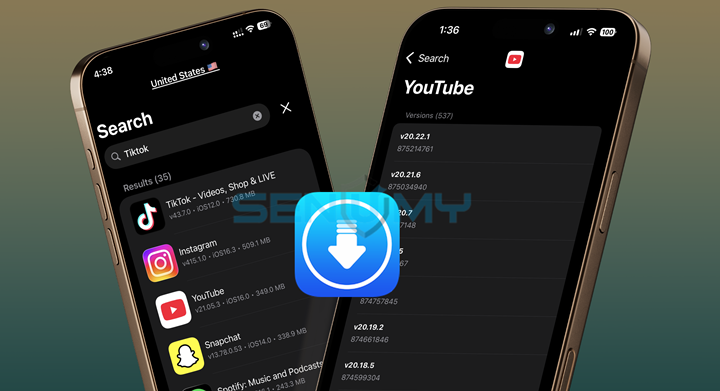
With DLiPA, you can easily install older versions of apps on your iPhone or iPad, making it perfect for users who want app compatibility, classic UI versions, or better performance on newer iOS updates like iOS 26+.
Key Features of DLiPA
- Choose from multiple App Store storefronts
- Search apps by name, Bundle ID, or App Store link
- Copy Bundle ID, App ID, and app links
- Support for multiple Apple IDs
- Download free apps only
- Download apps as IPA files
- Install older versions of App Store apps
- Separate download folders for each account
- Share apps easily as IPA files
- Install apps directly on your device
- Works on non-jailbroken iPhones and iPads
Download DLiPA
Download and start using DLiPA to downgrade apps on iOS, install older app versions, and manage App Store IPAs easily — all without jailbreak.
v 1.2
Want the latest updates, new releases, and support? Join our Telegram channel and stay connected!
👉 Join us on Telegram
How To Install DLiPA IPA with AltStore
Step 01. install AltStore on your iOS device.
Step 02. Download the DLiPA IPA file.
Open the AltStore app on your device and go to the “My Apps” tab.
Step 03. Tap on the plus “+” icon at the top, then browse and select the YouTube Plus IPA file that you downloaded.
Step 04. If it’s your first time using AltStore, you will be asked to enter your Apple ID and password. AltStore requires it to sign the app so it can be installed. We recommend you use a burner account.
Step 05. The app will begin to install and once completed, you can open it from your Home screen.
How to Install DLiPA IPA with Sideloadly
Step 01. Download the latest version of Sideloadly for Windows or macOS and install it on your PC.
Step 02. Download the DLiPA IPA file from this page and save it to your computer.
Step 03. Connect your iOS device to your computer using a USB cable.
Step 04. Open the Sideloadly app on your PC.
You may be prompted to install the Mail Plug-in. Click the “Yes” button to continue.
Enter your Apple ID email under the “Apple account” field.
Step 05. Drag and drop the DLiPA IPA file into the IPA field shown on the left side of the interface. The field is represented by an IPA image.
Step 06. Click the “Start” button to begin the sideloading and installing the IPA.
When prompted, enter your Apple ID password. The tool uses your Apple ID to sideload the app. We recommend you use a burner account.
Step 07. Sideloadly will begin installing DLiPA IPA on your iOS device.
Step 08. Once the app is installed, don’t open it yet. You first need to verify your Apple ID profile if it’s your first time using Sideloadly. To do it, go to Settings > General > Device Management. Tap on your Apple ID and press the Trust button. Tap on Trust again from the popup alert.
Step 09. Now go to the Home screen to open the installed app.
Other methods to install DLiPA IPA with.
TrollStore
TrollStore is a permasigned jailed app that can permanently install any IPA installer, supporting iOS 14.0, iOS 15, iOS 16, and iOS 17.0. It works by using AMFI/CoreTrust to verify that the root certificate is used to sign the app and not revoke it.
eSign
ESign is a free mobile IPA signature tool for iOS, allowing you to sign apps with your certificates and install them on your iPhone or iPad. It serves as a sideloading alternative with support for iOS 11 up to iOS 17. x, enabling the installation of IPA files without a computer.
Scarlet
Scarlet is installed with this tool, which allows you to add jailbroken repos and install IPA, all without a jailbreak, with support for iOS 11 up to iOS 17 and higher.
Compatibility iOS & iPadOS
- iOS 26 / iOS 26.0.1 / iOS 26.1 / iOS 26.2
- iOS 18.0, iOS 18.0.1, iOS 18.1, iOS 18.2, iOS 18.3, iOS 18.3.1, iOS 18.3.2, iOS 18.4, iOS 18.4.1, iOS 18.4.2, iOS 18.5
- iOS 17.7, iOS 17.6.1, iOS 17.6, iOS 17.5.1, iOS 17.5, iOS 17.4.1, iOS 17.4, iOS 17.3.1, iOS 17.3, iOS 17.2.1, iOS 17.2, iOS 17.1.1, iOS 17.1, iOS 17.0.2, iOS 17.0.1, iOS 17.0
- iOS 16.6, iOS 16.5.1, iOS 16.5, iOS 16.4.1, iOS 16.4, iOS 16.3.1, iOS 16.3, iOS 16.1, iOS 16.0.3, iOS 16.0.2, iOS 16.0
- iOS 15.6.1, iOS 15.6, iOS 15.5, iOS 15.4.1, iOS 15.4 , iOS 15.3.1, iOS 15.3, iOS 15.2.1. iOS 15.2, iOS 15.1.1, iOS 15.1
- iOS 15.0.2 , iOS 15.0.1, iOS 15.0
- iOS 14.8 , iOS 14.7.1, iOS 14.7, iOS 14.6, iOS 14.5.1, iOS 14.5, iOS 14.4.2, iOS 14.4.1, iOS 14.4, iOS 14.3, iOS 14.2.1
- iOS 14.2, iOS 14.2, iOS 14.1, iOS 14.0
- iOS 13/ iOS 13.1/ iOS 13.1.1/ iOS 13.1.2/ iOS 13.1.3/ iOS 13.2/ iOS 13.2.1/ iOS 13.2.2 / iOS 13.2.3/ iOS 13.3/ iOS 13.3.1/ iOS 13.4/ iOS 13.4/ iOS 13.4.1/ iOS 13.4.1/ iOS 13.5/ 13.5.1/ iOS 13.6
Compatibility Devices
iPhone 17 Air, iPhone 17, iPhone 17 Plus, iPhone 17 Pro, iPhone 17 Pro Max, iPhone 16e, iPhone 16, iPhone 16 Plus, iPhone 16 Pro, iPhone 16 Pro Max, iPhone 15, iPhone 15 Plus, iPhone 15 Pro, iPhone 15 Pro Max, iPhone 14, iPhone 14 Plus, iPhone 14 Pro, iPhone 14 Pro Max, iPhone 13, iPhone 13 Mini, iPhone 13 Pro, iPhone 13 Pro Max, iPhone 12, iPhone 12 Mini, iPhone 12 Pro, and iPhone 12 Pro Max, iPhone 11 Pro Max, iPhone 11 Pro, iPhone 11, iPhone Xs, iPhone Xs Max, iPhone XR, iPhone X, iPhone 8, iPhone 8 Plus, Phone 7 & 7 Plus, iPhone 6S & 6S Plus, iPhone 6 & 6 Plus, iPhone SE.iPhone 11 Pro, iPhone 11, iPhone SE.