
Nebulo
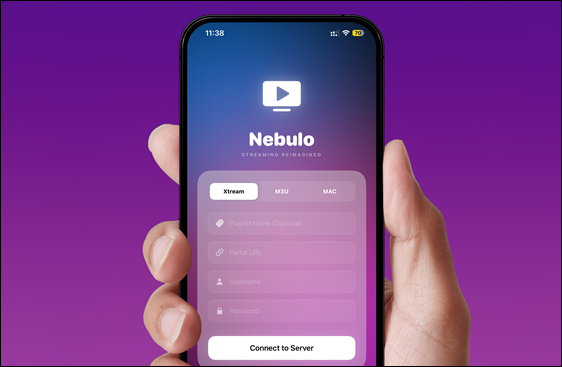
Nebulo is a modern IPTV player for iOS that lets you stream live TV using your own IPTV provider. It does not include built-in channels. Instead, you connect your service using Xtream Codes or M3U playlist URLs, and Nebulo handles playback, guides, and navigation directly on your device.
What’s New in Nebulo 2.3
⚠️ If the main IPA can’t be verified, use the backup version (better for signing apps).
🚀 Major Updates
- Added more sports categories (including soccer)
- Better game search and customizable sports tabs
- Improved recording: works in background, resumes if app closes, more stable
- Fixed KSPlayer stopping issue — now more reliable
- Smoother and cleaner multi-view layout
⚡ Performance & UI
- Faster startup after first login
- More accurate progress bar
- Improved settings with update status message
- EPG loads faster and more efficiently
🛠 Stability Improvements
- Fixed crashes caused by memory issues
- Overall better playback and performance
- Improved update checker and upgraded FFmpeg system
Playlist & URL Support
Nebulo supports M3U playlist URLs, making it easy to import IPTV sources.
How to add a playlist:
- Tap the ➕ button
- Choose Import from URL
- Paste your M3U playlist link
You can also create empty M3U playlists if needed.
Example public playlist (for testing):
https://iptv-org.github.io/iptv/index.m3u
⚠️ Only one playlist can be active at a time.
What Is Nebulo?
Nebulo is a standalone IPTV player for iPhone and iPad. It requires a valid Xtream Codes subscription or playlist URL to work. The app does not provide content by itself.
Once connected, Nebulo offers:
- Live TV streaming
- Electronic Program Guide (EPG)
- Picture-in-Picture (PiP) on supported devices
- Multi-view layouts for watching multiple channels at once
- Fast channel switching and smooth playback
Audio is intelligently managed so only one stream plays sound at a time.
Interface & Experience
Nebulo uses a clean, iOS-style design optimized for both iPhone and iPad. Navigation is organized into playlists, channels, and program guides, with built-in search tools to quickly find content—even in large channel lists.
📝 Important Notes
- Requires Xtream Codes API access
- No built-in channels included
- Experimental features may change with future iOS updates
Download Nebulo IPA.
You can install the Nebulo IPA using popular tools like AltStore, SideStore, Sideloadly, TrollStore, and other sideloading apps directly from your computer.
v 2.3
Want the latest updates, new releases, and support? Join our Telegram channel and stay connected!
👉 Join us on Telegram
How to Install Nebulo IPA Using Impactor
Installing Nebulo IPA with Impactor is quick and beginner-friendly. Just follow the steps below.
Step 1: Open Impactor
- Connect your iPhone or iPad to your computer (USB or Wi-Fi)
- Download and open Impactor
- Go to Settings and sign in with your Apple ID
Step 2: Import the Nebulo IPA
- Click Import
- Select the Nebulo IPA file from your computer
Step 3 (Optional): Customize App Details
You can edit the app before installing if needed:
- App name
- Bundle ID
- Version number
- Compatibility options
(This step is optional and can be skipped.)
Step 4: Install the App
- Click Install
- Sign in again if prompted
- PlumeImpactor will automatically sign and install LBox on your device
Step 5: Trust the App on Your Device
On your iPhone or iPad:
- Go to Settings → General → VPN & Device Management
- Find your Apple ID profile
- Tap Trust
✅ Done! LBox is now installed and ready to use.
How To Install Nebulo IPA with AltStore
Step 01. Install AltStore on your iOS device.
Step 02. Download the Nebulo IPA file.
Open the AltStore app on your device and go to the “My Apps” tab.
Step 03. Tap on the plus “+” icon at the top, then browse and select the Nebulo IPA file that you downloaded.
Step 04. If it’s your first time using AltStore, you will be asked to enter your Apple ID and password. AltStore requires it to sign the app so it can be installed. We recommend you use a burner account.
Step 05. The app will begin to install, and once completed, you can open it from your Home screen.
How to Install Nebulo IPA with Sideloadly
Step 01. Download the latest version of Sideloadly for Windows or macOS and install it on your PC.
Step 02. Download the Nebulo IPA file from this page and save it to your computer.
Step 03. Connect your iOS device to your computer using a USB cable.
Step 04. Open the Sideloadly app on your PC.
You may be prompted to install the Mail Plug-in. Click the “Yes” button to continue.
Enter your Apple ID email under the “Apple account” field.
Step 05. Drag and drop the Nebulo IPA file into the IPA field shown on the left side of the interface. The field is represented by an IPA image.
Step 06. Click the “Start” button to begin the sideloading and installing the IPA.
When prompted, enter your Apple ID password. The tool uses your Apple ID to sideload the app. We recommend you use a burner account.
Step 07. Sideloadly will begin installing Nebulo IPA on your iOS device.
Step 08. Once the app is installed, can you not open it yet? You must verify your Apple ID profile if it’s your first time using Sideloadly. To do it, go to Settings > General > Device Management. Tap on your Apple ID and press the Trust button. Tap on Trust again from the pop-up alert.
Step 09. Now go to the Home screen to open the installed app.
Other methods to install Nebulo IPA.
TrollStore
TrollStore is a permasigned jailed app that can permanently install any IPA installer, supporting iOS 14.0, iOS 15, iOS 16, and iOS 17.0. It works by using AMFI/CoreTrust to verify that the root certificate is used to sign the app and not revoke it.
e-Sign
e-Sign is a free mobile IPA signature tool for iOS, allowing you to sign apps with your certificates and install them on your iPhone or iPad. It serves as a sideloading alternative with support for iOS 11 up to iOS 17. x, enabling the installation of IPA files without a computer.
MapleSign
Discover the most affordable signing service for your iOS devices. Elevate your experience with our ultimate free enterprise certificates IPA sideload signing service, compatible with iPhone, iPad, Apple TVOS, and visionOS.
3uTools
Using the 3uTools IPA Signature is the best method for installing IPA files. Whether you’re on a Mac or Windows, installing IPAs on your iPhone or iPad is straightforward.
Scarlet
Scarlet is installed with this tool, which allows you to add jailbroken repos and install IPA, all without a jailbreak, with support for iOS 11 up to iOS 17 and higher.
Compatibility iOS & iPadOS
- iOS 26.0, iOS 26.0.1, iOS 26.1, iOS 26.2
- iOS 18.0, iOS 18.0.1, iOS 18.1, iOS 18.2, iOS 18.2.1, iOS 18.3, iOS 18.31, iOS 18.4, iOS 18.4.1, iOS 18.5, iOS 18.6, iOS 18.6.1, iOS 18.6.2
- iOS 17.5.1, iOS 17.5, iOS 17.4.1, iOS 17.4, iOS 17.3.1, iOS 17.3, iOS 17.2.1, iOS 17.2, iOS 17.1.1, iOS 17.1, iOS 17.0.2, iOS 17.0.1, iOS 17.0
- iOS 16.6, iOS 16.5.1, iOS 16.5, iOS 16.4.1, iOS 16.4, iOS 16.3.1, iOS 16.3, iOS 16.1, iOS 16.0.3, iOS 16.0.2, iOS 16.0
Compatibility Devices
iPhone 17 Air, iPhone 17, iPhone 17 Pro, iPhone 17 Pro Max, iPhone 16e, iPhone 16, iPhone 16 Plus, iPhone 16 Pro, iPhone 16 Pro Max, iPhone 15, iPhone 15 Plus, iPhone 15 Pro, iPhone 15 Pro Max, iPhone 14, iPhone 14 Plus, iPhone 14 Pro, iPhone 14 Pro Max, iPhone 13, iPhone 13 Mini, iPhone 13 Pro, iPhone 13 Pro Max, iPhone 12, iPhone 12 Mini, iPhone 12 Pro, and iPhone 12 Pro Max, iPhone 11 Pro Max, iPhone 11 Pro, iPhone 11, iPhone Xs, iPhone Xs Max